Minecraft Map Art Planner
Upload any image and this tool turns it into a Minecraft map-art plan: which coloured blocks to place, and how many of each you need. Everything happens in your browser — your image never leaves your computer. Great for turning logos, drawings, or your favourite character into a wall-mounted framed map.
Upload and preview
Note: the background colour swatch only shows through on transparent parts of your image (PNGs with alpha). Photos and JPEGs are fully opaque, so the swatch has no visible effect on them.
Building your map art, step by step
Map art is one of the most satisfying long-term builds in Minecraft — take any image, lay it out block-by-block on the ground, then walk around it holding an empty map. The map fills in with a permanent copy of what you've built, and you can frame it on a wall or trade it to other players.
The catch: Minecraft maps only have a small palette of colours (16 or so bright ones — the concrete list this tool uses). So high-contrast images with big flat colour areas work best: cartoon characters, logos, silhouettes, pixel art. Photographs come out grainy because they use thousands of colours the game can't reproduce.
The build process, in the order most people do it:
- Upload your image here and check the "Map-art version" preview looks acceptable. If the details vanish, try cropping tighter or upping the contrast in an image editor first.
- Grab the shopping list — you'll need roughly the counts shown. Concrete comes in stacks of 64, and each block is 4 sand + 4 gravel + 1 dye + water, so plan ahead.
- Find a flat 128x128 area, ideally at Y=64 or so. Lay one row at a time. Some players use a scaffold above and drop blocks; others build from the ground up.
- When it's done, right-click with an empty map in hand and walk the perimeter. Use a cartography table + glass pane to lock the finished map.
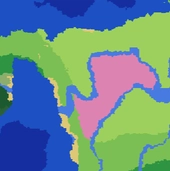
Building on a flat plot? The Seed Map can help you find one. Or browse every SeedLander tool →


Map art FAQ
A single Minecraft map is 128 blocks wide by 128 blocks tall. Most map-art pieces are 1x1 map (128x128 blocks) or 2x2 (256x256). This tool downscales your image to 128 pixels wide so what you see in the preview is exactly what one map will look like. For a bigger picture, use multiple maps side by side and split the source image accordingly.
You can use any block that has the map colour you need. Concrete is popular because the colours are bright and it doesn't burn like wool. Wool works fine indoors but catches fire from a stray lava drip. Terracotta gives softer tones for artistic pieces. The generator here uses the 16 base colours you'll find in concrete, wool AND terracotta, so the plan translates.
Stand next to your build with an empty map in hand, then right-click. The map fills in as you walk around. To lock the finished map so it never updates, put it in a cartography table with a glass pane — that gives you a permanent copy you can frame on a wall.
Because your original image had more than 16 colours, and every pixel has to snap to the nearest one in the Minecraft palette. That's just how map art works — high-contrast, simple images (logos, cartoon characters, silhouettes) come through much cleaner than photographs.
Yes — Minecraft actually has 62 map colours with 4 shade variants each (about 250 total). But most of the extra colours require specific block types (mycelium, dried kelp, honeycomb, etc.) and the shade variants depend on the block being 1 higher or lower than the block next to it. For a first map-art piece, stick with the 16 concrete colours this tool gives you. Advanced tools use the full palette; expect to spend a lot longer sourcing materials.